
I've tried to make a multi class overlay, My main issue is assigning the classes to their rightful places on my overlay. I don't know if atvo supports the ai but its the main use for this overlay

I've tried to make a multi class overlay, My main issue is assigning the classes to their rightful places on my overlay. I don't know if atvo supports the ai but its the main use for this overlay
Don't know why it used the image twice
When running an AI race, iRacing does not assign a proper class name to each car, which breaks our standard multiclass assignments. You can fix it by using custom classes and assigning all cars to their class manually.
Nick Thissen wrote:
When running an AI race, iRacing does not assign a proper class name to each car, which breaks our standard multiclass assignments. You can fix it by using custom classes and assigning all cars to their class manually.
How would I go about doing this, I've tried assigning classes but and I use the class ID in the roster.json but the classes don't show up properly
It is unfortunately a bit of manual effort, but the steps would be:
If all is well (and you are on version 1.38 at least) you'll get a purple bar at the bottom of the ATVO controls which notifies you that custom classes are enabled. It will also warn you if there are cars in your session that you did not assign to a class - if that happens make sure you fix it otherwise positions will not be correct.
Nick Thissen wrote:
It is unfortunately a bit of manual effort, but the steps would be:
- Go to Settings - Custom Classes, and add a new custom class via the New button. Give it a name (doesn't matter) and make sure to select 'Custom Classes' and not 'iRacing classes'
- Select your new class profile in the list to start adding classes.
- Add a new class and give it the appropriate name and colors (you can choose these freely).
- Then, add one or more cars to this class by their class ID. Click New to add a car and then change the ID (default 0) to the ID of the car. You can find the ID of the car in your roster.json file as well under 'carId'.
- Repeat for as many classes as you have
- Restart ATVO for the changes to take effect
If all is well (and you are on version 1.38 at least) you'll get a purple bar at the bottom of the ATVO controls which notifies you that custom classes are enabled. It will also warn you if there are cars in your session that you did not assign to a class - if that happens make sure you fix it otherwise positions will not be correct.
I right now have all that down I think. How do I assign it in the theme editor to the leaderboard?
I'm not sure what you mean. You do it just like normally. It is the same for AI racing. Are you not sure how to get multiclass shown in general? There are several ways to show class information, many bindings deal with classes for example. There are also override bindings for the background of widgets you can bind to class colors etc. For data sources you can use the Class Filter to show just one class.
I have some screenshots of my atvo classes screen and theme editor, I'm not so sure what to do from here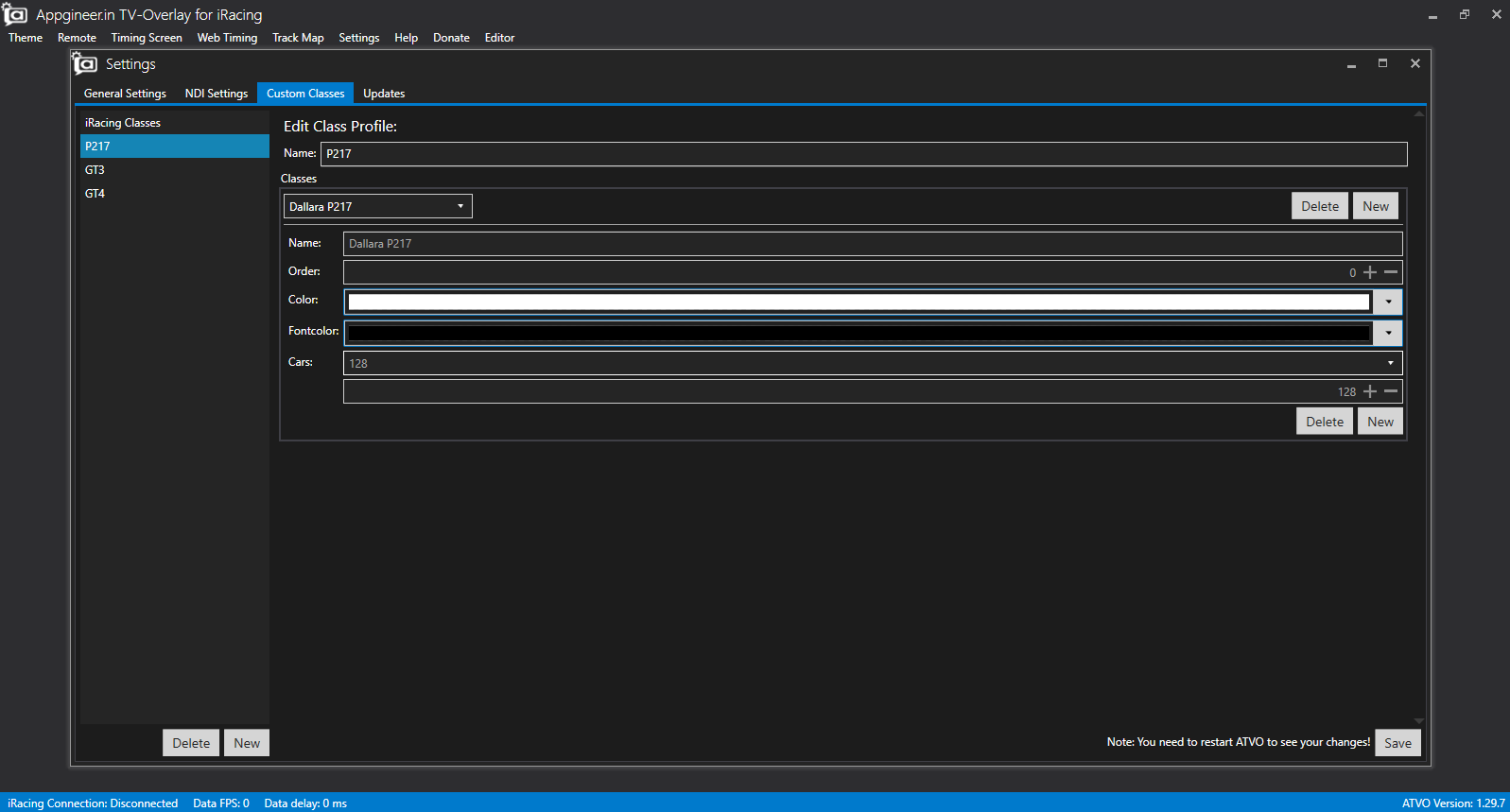
You have made 3 new class profiles, instead of one profile with 3 classes. Each profile can consist of multiple classes, and a profile is for example used for different sets of classes. For example, you can have one profile for LMP2+GTE+GT3, and another one for GT3+GT4. Or even two profiles for GT3+GT4 but with different colors or something.
You can delete the three custom profiles on the left, and make just one new one (select Custom Classes again). Once you create one profile, keep that one selected and focus on the right panel now. There you can add your 3 classes by clicking 'New' 3 times. Then, select each class one by one and start adding cars and setting the colors etc.
In this dropdown you should have your 3 classes like here

I forgot I posted in here for like however long its been, I did what you said, it worked but it only shows 2nd on through the field for 2 of the 3 classes
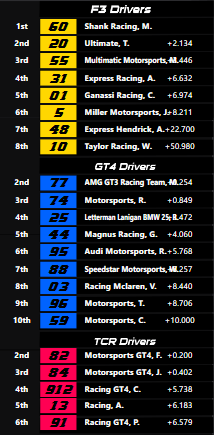
Jaedon W. wrote:
I forgot I posted in here for like however long its been, I did what you said, it worked but it only shows 2nd on through the field for 2 of the 3 classes
Check to make sure your data offsets are set to 0.
Zack R. wrote:
Jaedon W. wrote:
I forgot I posted in here for like however long its been, I did what you said, it worked but it only shows 2nd on through the field for 2 of the 3 classes
Check to make sure your data offsets are set to 0.
When I do that it shows the same driver through all the slots
Nevermind got it
Hey I'm bringing this back because I have another issue. I tried revising this leaderboard, making it look nicer and it seems something is causing the first place driver in only LMP2 be shown twice. I have been screwing around with buttons and event triggers for the flags if that might have something to do with it
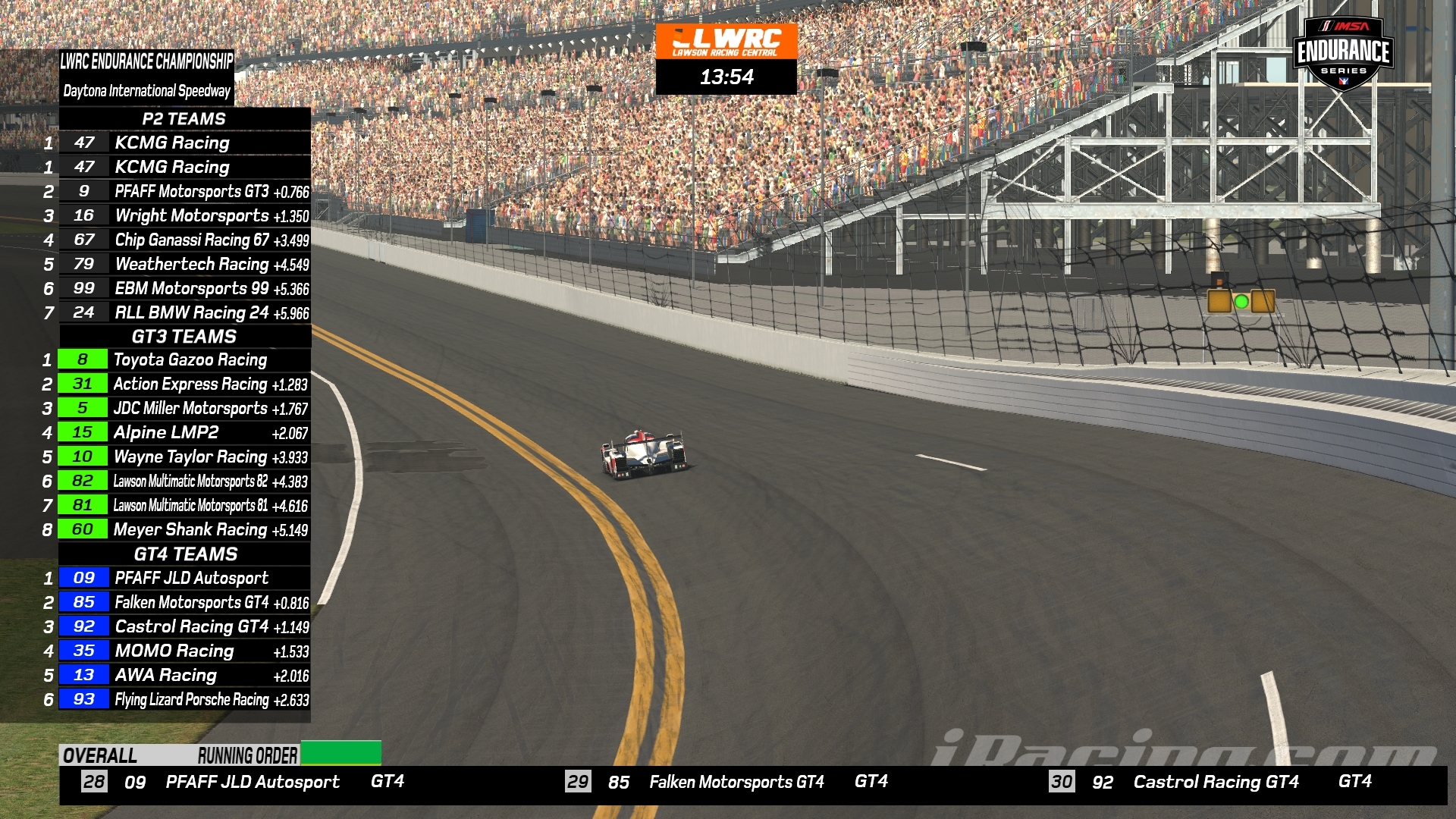
This double first place doesn't show up in the theme editor. Only when opening the leaderboard
fixed it
Great! Could you post what fixed it in the end in case someone encounters the same issue?
I had a header on and didn't notice
New replies have moved to Discord.